Read your dashboard
The dashboard brings your Areas and devices together in one place. Use it to find a space, see the devices assigned to it, and open the details you need. Choose Board or List next to the device counts to switch views.
Find the right space on the Board
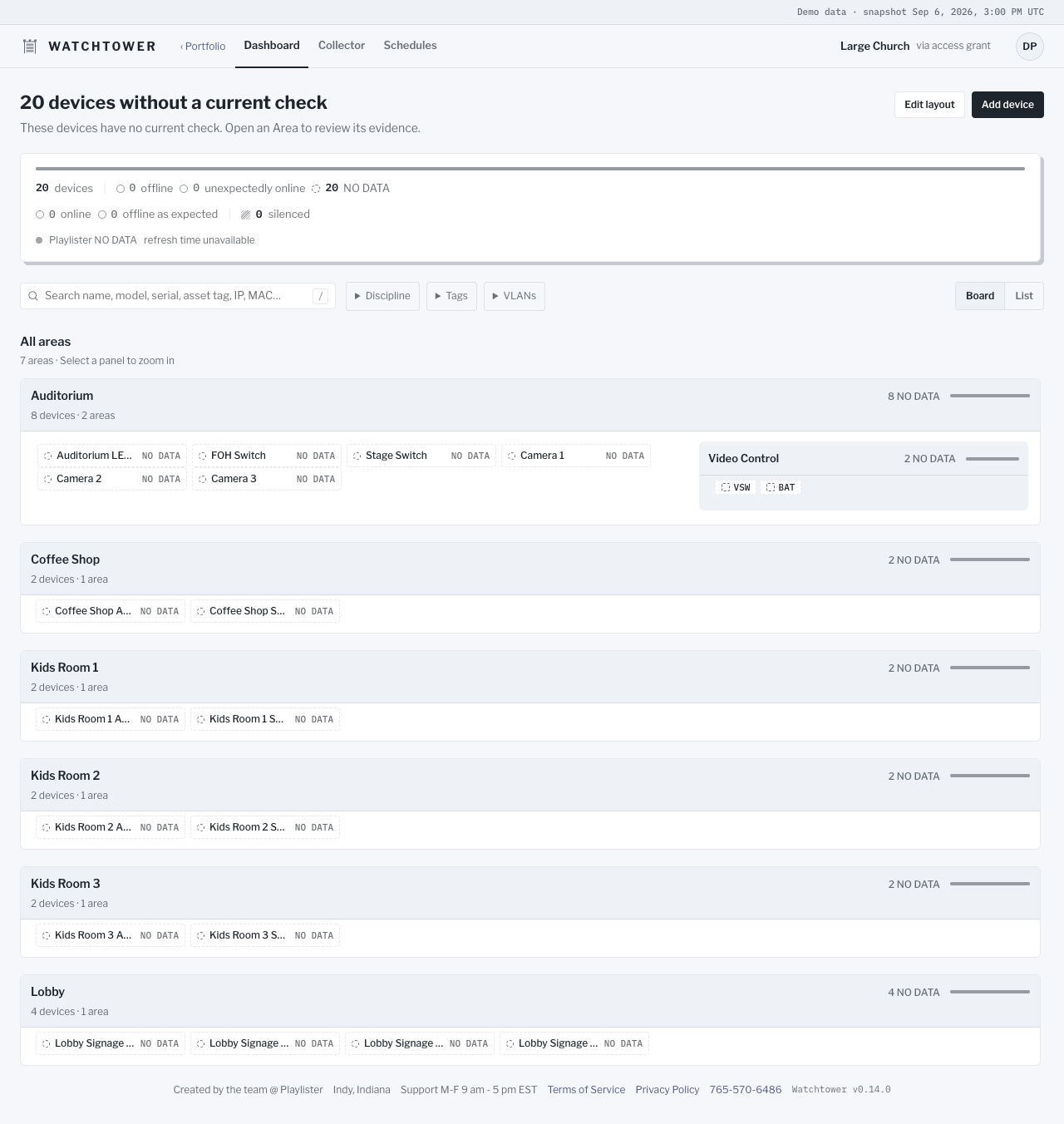
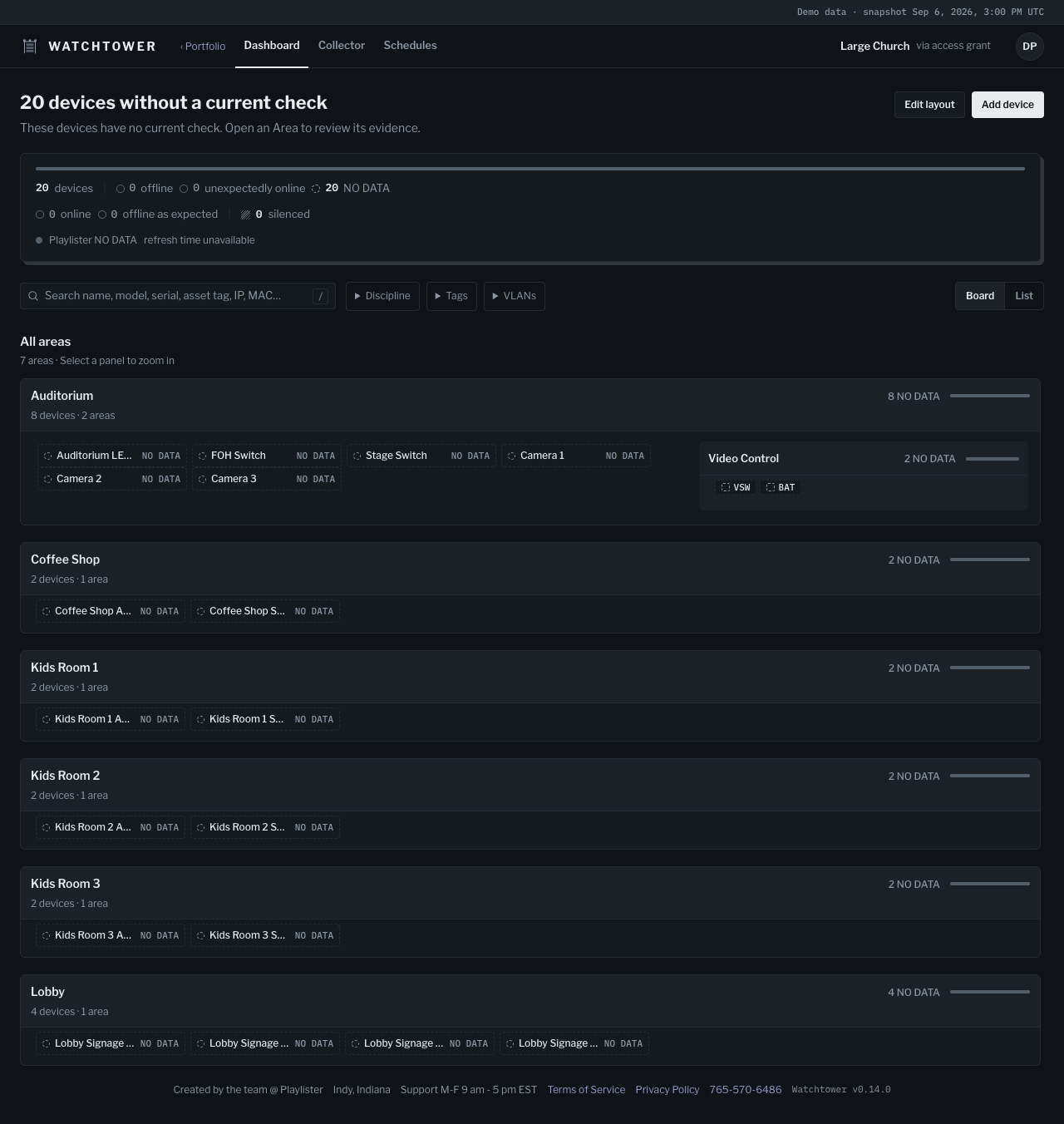
Section titled “Find the right space on the Board”Areas can contain other Areas. Their arrangement helps your team understand how spaces relate; it is not a measured floor plan. The board’s top-level Areas appear in a vertical list. Each Area’s children follow the arrangement saved for that Area: Stacked fills the available width, while Side by side shares a row and wraps when its panels need more room. An Area’s own devices appear before its child Areas. Areas and devices follow the order your team saves in Edit layout; their status and saved links do not move them ahead of other devices. Side-by-side children wrap on a phone without horizontal page scrolling, and child Areas visible on desktop stay visible. Very large groups may appear as summaries; open one to see its contents. At the third visible Area level, a compact row shows its name and status with one square per device inside. When the squares would not all fit, a status bar fills the available space instead. Both show the devices throughout that Area, including its child Areas. Open the row or an enclosing Area to see more detail. Side-by-side compact Areas share space according to their names, device squares and status text. The Board balances their rows while keeping your saved order and grouping.
Deeper devices take less space: names and status become compact rows, then short labels. Area names remain readable, with status moving below when it needs more room. Hover or focus a device to see its full name and status, or open its details. Silenced devices keep their striped pattern, and NO DATA keeps its dashed outline at every size.
Devices that are Offline · as expected use a hollow red circle. Unexpected offline results keep a filled red mark. Silenced devices retain normal solid neutral borders; the hatched mark and Silenced label identify their silencing.
Open an Area to bring it to the outer level and show more detail. The selected Area becomes the surrounding frame, so its children move one level closer and reveal more—even on the first zoom from the full Board. Choose Edit layout to change names, placement, order, and the devices assigned to each Area. See Devices and Areas.
Use the List
Section titled “Use the List”The List starts grouped by Area, with Areas and devices in the order your team saved. It shows each device’s status and IP address. Under Group by, Status places devices into Offline, Unexpectedly online, NO DATA, Online, Offline as expected, and Silenced groups, in that order. Each device belongs to one group; allowance and scheduled-silence states retain their observed result within those groups.
Choose a Device, Status, Area, or IP address column heading to sort within each group. Choose the same heading again to reverse the order; the arrow shows the direction. Choose VLAN to group devices by their matching VLAN names. A device with addresses in several VLANs appears in each matching group; devices without a match appear under No VLAN. The Area column appears when grouped by Status or VLAN. Choose Saved order to return to your layout. Column sorting changes only the List view, and the page address remembers your choice. It does not rearrange the Board or change the order saved in Edit layout.
When refreshed values change a column’s sort order, rows within each group stay in place. Choose Re-sort beside Order changed to apply the updated order. Status groups continue to reflect each device’s current status.
Select a device’s name to open its web interface in a new tab when a link is saved (marked ↗), or choose Edit to open the device editor. Choose an Area name to filter the List to that Area; the breadcrumb returns you to All areas.
The Board and the List share the same Area filter and search, so switching views keeps your place. The page address includes them, so you can bookmark or share a filtered view with your team.
Search your devices
Section titled “Search your devices”The search box above the Board and the List matches device names, make and model, serial numbers, asset tags, IP addresses, MAC addresses, and Area names. Separate words narrow the results; each word can match a different detail. Press / to jump to the search box; press Escape in the box to clear it.
On the Board, devices that don’t match are dimmed. The List shows only matching devices and highlights the matching text, with a note when the match came from a detail other than the name.
Filter by discipline, tag or VLAN
Section titled “Filter by discipline, tag or VLAN”Use Discipline, Tags, and VLANs beside search to narrow the inventory. A device can match any selected value within one filter, and must match every filter you use together. Search and the selected Area narrow the results further. No discipline finds devices without an effective discipline.
The browser remembers these filters for your account and Organization through reloads. An explicit filtered page address takes precedence. Clearing filters is remembered too. See Devices and Areas to create categories and configure VLAN ranges.
Read the summary
Section titled “Read the summary”The counts and proportional bar use the same six groups as the List. Each device is counted once. Offline failures appear before unexpectedly-online mismatches, followed by missing evidence. Warm-up, cool-down, and scheduled-silence counts explain the schedule without adding extra devices to the total. Silencing and collector freshness appear separately.
Schedules describe when a device should respond. Open Schedules to create or assign a weekly rule; Schedule device expectations explains the choices.
Check the evidence
Section titled “Check the evidence”Needs attention initially shows up to three items. Choose Show all to see the rest, or Show fewer to return to three. The summary counts always include every item.
When monitoring is reporting and all unsilenced devices have current evidence consistent with their expectations, a green check beside the headline and a green summary border show that nothing needs attention. This includes devices that are offline as expected. At least one device must be unsilenced; missing evidence remains NO DATA. Healthy Area summaries use green text. Zero counts stay neutral, and striped portions of status bars represent silenced devices, which can still be offline or have NO DATA.
A status summarizes the information available for a device. Open the device’s details to check its source and freshness before deciding what to do.
online means a current configured reachability check succeeded. It does not establish that an application is working or that a screen is displaying the right content.
NO DATA means current evidence is missing. It is not a device-failure report. See all status meanings.
Open a saved destination
Section titled “Open a saved destination”A saved web destination is a shortcut. Your browser needs access to that destination to open it. Watchtower does not provide remote access to a device through the shortcut, and opening a link does not establish reachability.
Share a read-only dashboard
Section titled “Share a read-only dashboard”If you manage the Organization or support it as a provider, open Organization settings. First select the Organization, then click your initials in the top-right corner to open the account menu. Under Dashboard links, choose New dashboard link.
Give the dashboard a name and choose what viewers can see. Select an Area to include that Area and all its descendants, such as one campus and its rooms. You can select multiple Areas or leave All Areas selected. Device groups, disciplines, tags and VLANs can narrow the view further. A device must match each filter you use, and can match any selected value within one filter. Leave filters empty to include the whole Organization.
Save the link, then choose Copy link. You can create several dashboard links, each with its own name, filters, and bookmark. Return to settings to copy a link again, edit its filters, or revoke it without changing the other links. Filter edits take effect for existing bookmarks. If a saved Area, group, tag or VLAN no longer exists, that link becomes unavailable until you repair its filters; it does not automatically include more devices.
Anyone with a link can view its selected device names, Areas, current status, and discipline, tag, and VLAN names with their colors without signing in. VLAN address ranges are not shown. Share it only with people who should see that information. The page is read-only and omits notes, schedule names, special-date labels, and editing controls. It refreshes automatically; missing or stale evidence still means NO DATA.
Device web interface links are hidden by default. Enable Show device web interface links on this dashboard only when you want to share those destinations. Viewers still need network access to open them. Revoking a link stops access through its bookmark. Creating another link does not restore a revoked bookmark.
Organization time zone
Section titled “Organization time zone”Open Organization settings from your account menu to review or change the time zone used for schedules. A new Organization starts with the time zone of the person creating it. Existing Organizations without a time zone start with Eastern time (America/New_York); previously chosen time zones are kept. Check this setting when creating an account for a team in another region. Changing your own computer’s time zone later does not change the Organization.