Schedule device expectations
A schedule defines when a device is Expected on, Expected off, or Silenced. Assign the same schedule to several devices to keep their expectations consistent. A device without a schedule is expected on at all times.
Schedules change what Watchtower expects and flags. They do not turn equipment on or off. An online result means the network interface answered; it does not prove that a projector lamp or display is on. No response does not prove that equipment is switched off.
Create a schedule
Section titled “Create a schedule”- Check your Organization’s time zone in Organization settings, then open Schedules.
- Choose New schedule and give it a name your team recognizes.
- Choose Expected off when responding between events should be flagged, or Silenced when either online or offline is acceptable. Devices are Expected on unless painted otherwise.
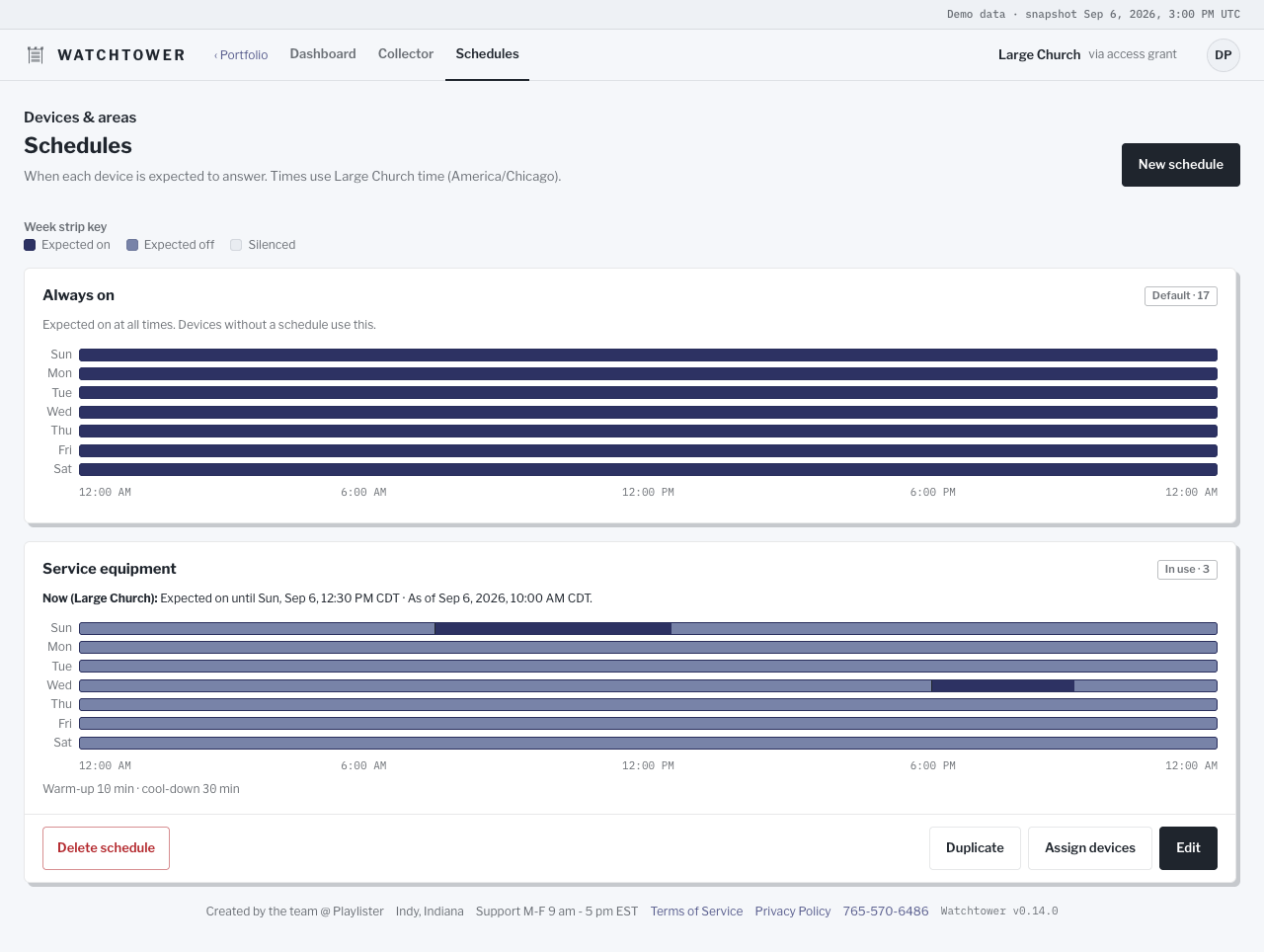
- Drag across days and times in the weekly grid. The highlighted day and time show where you are pointing. Painting Expected on clears exceptions. Touching periods with the same expectation join automatically, including across midnight and the end of the week.
- Set warm-up and cool-down allowances, review the current impact, and save to return to the schedule list.
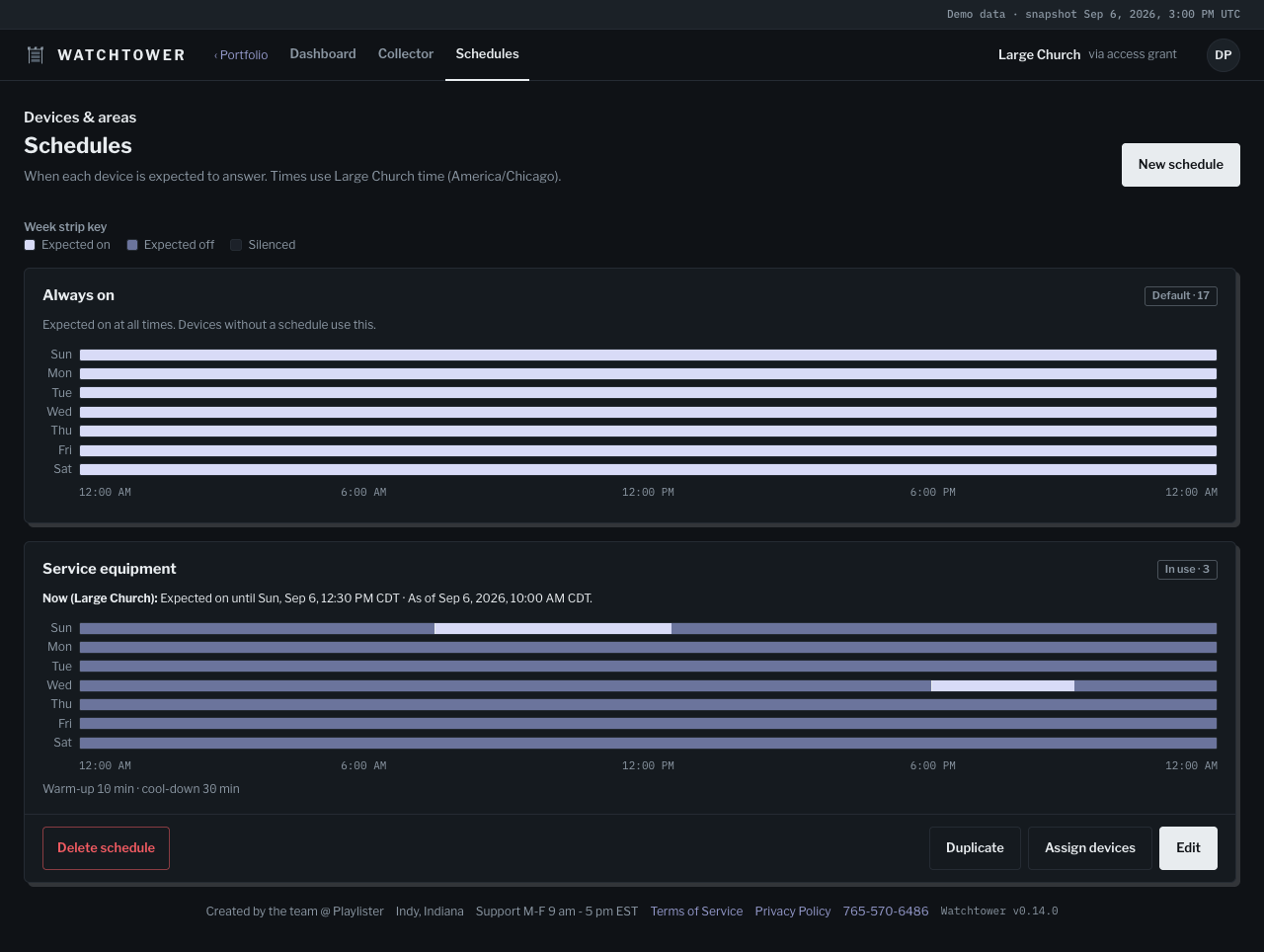
Solid colors distinguish the three expectations. To edit with a keyboard, Tab into the grid, move with the arrow keys, and press Space or Enter to apply the selected expectation. Hold Shift while using the arrow keys to select a rectangle; Escape cancels that selection. On a narrow screen, scroll the time axis horizontally to reach the rest of the day.
Schedule times use AM/PM in the Organization’s time zone and follow local service times when daylight saving changes. Device facts label the time zone used for transition times.
Assign and manage devices
Section titled “Assign and manage devices”Use Assign devices to select devices from their Areas, in the same saved order as the dashboard. Check an Area header to select all its displayed devices, or uncheck it to clear them. Search filters the displayed choices without clearing selections elsewhere. A device uses one schedule at a time. You can change an assignment or return it to Always on. Moving a device between Areas keeps its assignment.
Editing a schedule updates all its assigned devices. Review the impact notice before saving. Duplicate a schedule when another group needs similar hours. When deleting one, choose where its assigned devices should move; returning them to Always on makes them expected on all the time.
Special services and temporary changes
Section titled “Special services and temporary changes”Add a special date for an event that differs from the weekly schedule. Its date, hours and expectation override the weekly schedule during that period. Give it a useful label, such as “Holiday service.”
Choose All day for midnight to midnight, or Same time next day to end at the chosen start time on the following day. Both follow the Organization’s local time, including daylight saving changes.
Silencing a device overrides its schedule while retaining current evidence. On the Board, open the device, choose Silence for…, then choose 1 hour, 4 hours, or Until schedule changes. The schedule-change option needs an assigned schedule with a next expected change. Choose Unsilence to restore the scheduled expectation sooner. The separate Silence action has no automatic expiry.
Understand scheduled states
Section titled “Understand scheduled states”Expected-on devices that are offline have a vivid red mark. Devices responding while scheduled Expected off have a yellow warning mark and are identified as Unexpectedly online. Expected offline results use a hollow red circle and Offline · as expected. Warm-up and cool-down allow equipment time to start or finish before the corresponding mismatch is flagged. NO DATA remains missing evidence, including while scheduled Expected off; it is never treated as proof of shutdown.
If a device answers the network while in standby, mark Stays reachable when switched off. Its Expected off periods become Silenced because reachability cannot check its physical power state.
See Understanding status for the full evidence distinctions.