Devices and Areas
You maintain your inventory from the dashboard. Choose Edit layout above the Board or the List to open the layout editor: one table showing every Area and the devices inside it, in the order the dashboard displays them. Adding a device documents it; it does not automatically mean the device is being monitored.
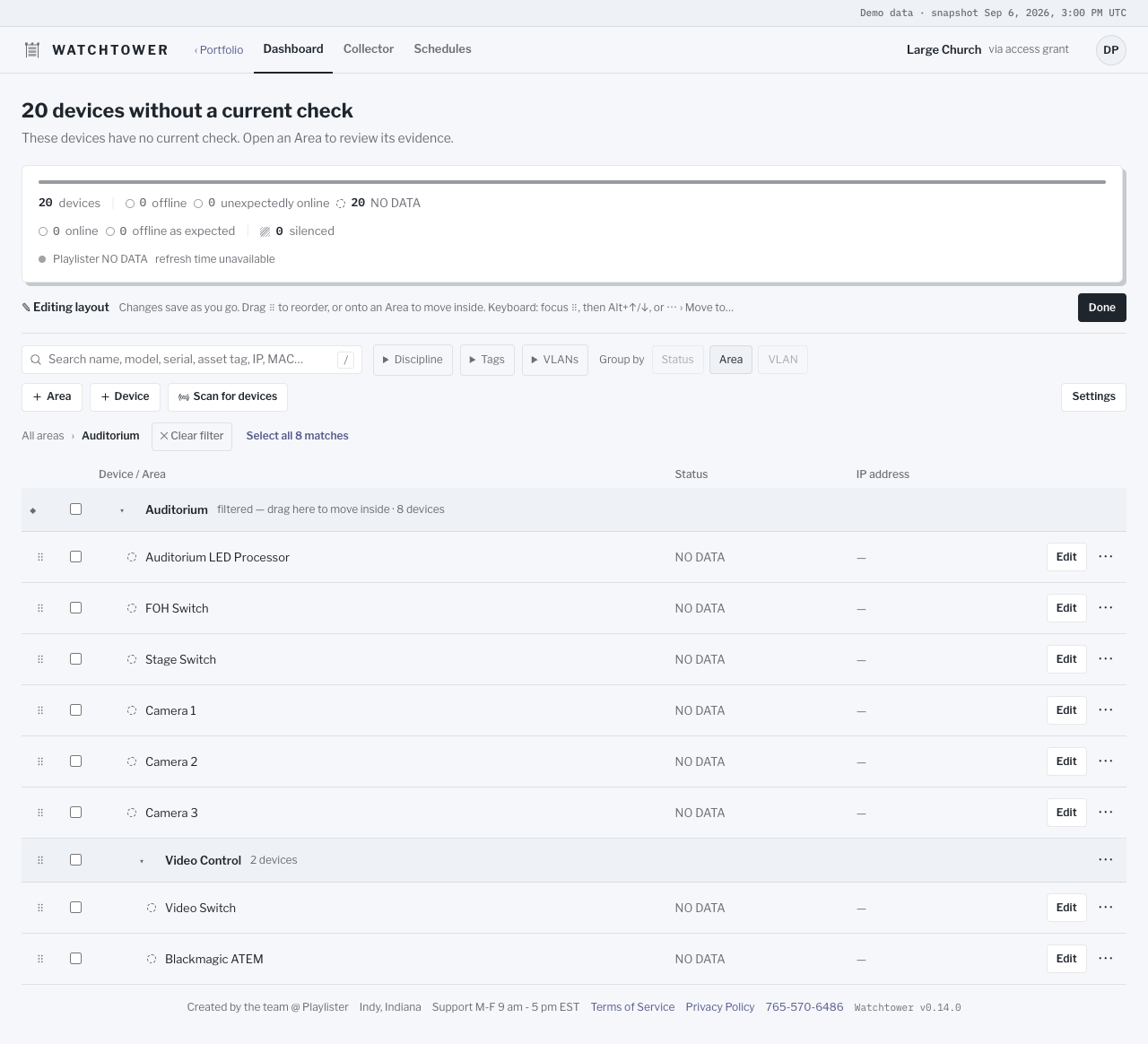
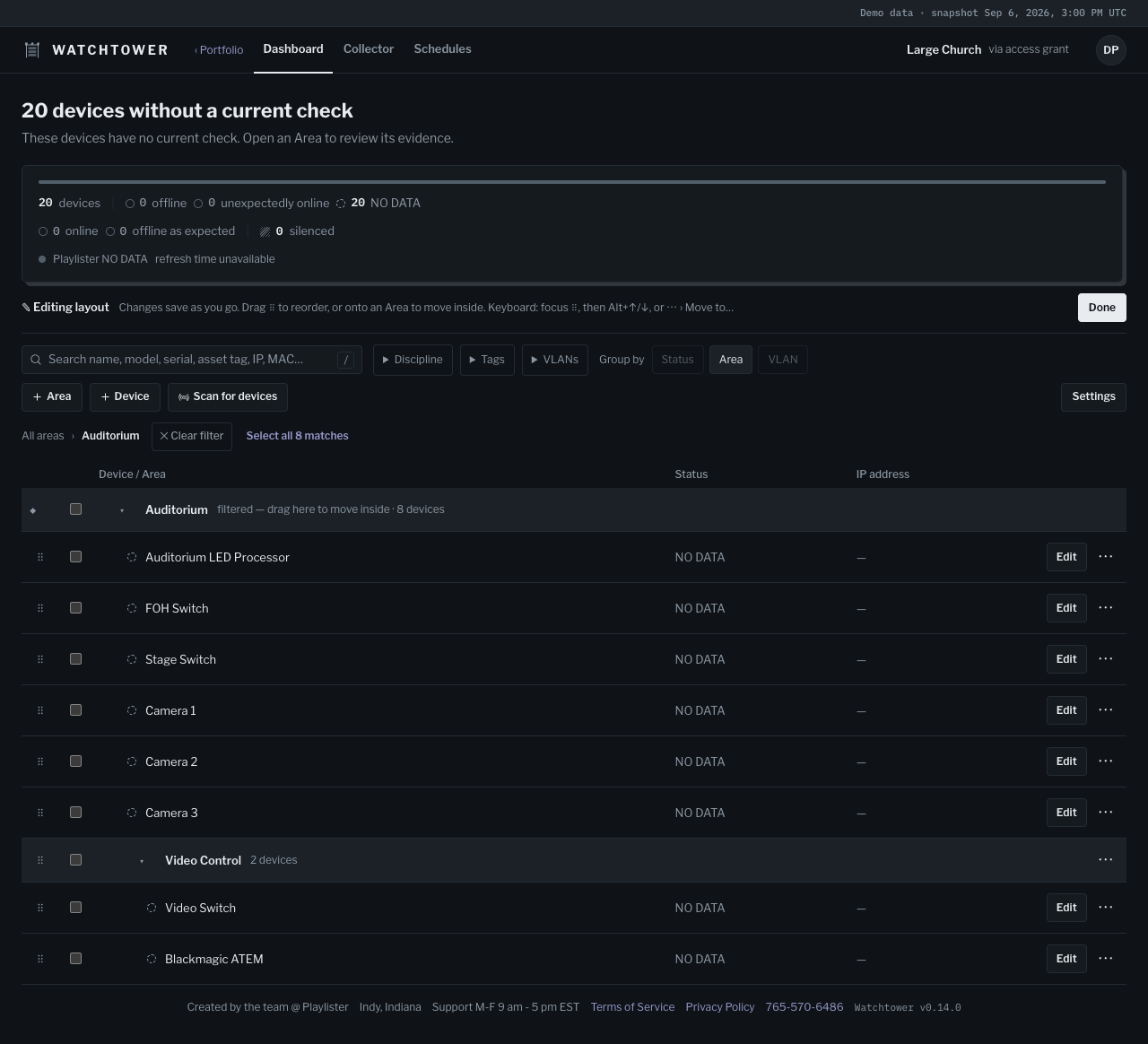
The editor’s toolbar holds + Area, + Device, Scan for devices, and Settings. Choose Done when you finish; if you started editing from the Board, Done → Board takes you back to it. Changes save as you make them.
Add a device
Section titled “Add a device”Use Schedules to define when installed devices are Expected on, Expected off, or Silenced. Schedules flag expectation mismatches without sending power commands.
Choose + Device, or Add device here in an Area’s ⋯ menu, enter a Device name, and select an Area. Choose Physical equipment, App, or Service when you know the inventory kind. You can save an unidentified item and complete its classification later. Existing inventory starts as Physical equipment; edit its kind when it represents an App or Service.
For physical equipment, browse Catalog manufacturer and Catalog model. For Apps and Services, browse Catalog provider and Catalog product. Here, Provider names the software vendor; it is separate from the Service Provider company supporting your Organization. A selected definition provides reusable product details; serial numbers, asset tags, addresses, destinations, and notes belong to your installed item. You can also record a MAC address when you know it. A selected product supplies the device’s manufacturer and model; a MAC-based manufacturer is only a suggestion.
When your product is missing
Section titled “When your product is missing”You can save a device without choosing a catalog product. Add the details you know and complete them later.
To reuse the same product details for several devices, create a private Model or Product. A Model describes physical equipment; a Product describes an App or Service. Enter the maker, product name, and any other required fields. Private definitions are visible only in your Organization.
Choose Edit definition to change these reusable details. Choose Change on a device to select a different product or version. A newer version does not automatically update your other devices.
If you want to share a private definition, save it first, then choose Submit this definition for review. Include only general product facts, such as the maker, model, and public documentation. Leave out your team’s names, device addresses, notes, and other installation details. Submission sends it for review; it does not publish it immediately. Approval can move devices using that private definition to the approved shared version. Their names, locations, notes, addresses, and monitoring settings stay with them.
A manufacturer suggestion from a MAC address identifies the network adapter’s registered maker. It may differ from the device’s brand and does not identify its model. Check it before saving.
Add a link or set up monitoring
Section titled “Add a link or set up monitoring”A saved destination and a monitoring host serve different purposes:
- The saved destination opens the device’s web interface or another useful page.
- The monitoring host is the device address a paired collector checks for a response.
The Web interface field appears for HTTP checks or once a link is saved; otherwise choose Add web interface.
Choose Monitoring method when configuring checks:
- Automatic checks the web interface when one is set, or pings the monitoring host otherwise.
- ICMP ping asks the device at the monitoring host to respond.
- HTTP web interface checks the website at the saved address, rather than the specific page in the link. A secure website needs a trusted certificate.
- TCP port checks whether the device accepts a connection on the port you enter.
HTTP and TCP checks require an updated collector. Review the guidance shown in the form for supported destinations. Enter your own device details. A saved link can be useful even when monitoring is not available.
Organize Areas
Section titled “Organize Areas”Choose + Area, or Add child area in an Area’s ⋯ menu, enter an Area name, and choose its parent with Inside. An Area that contains other Areas shows a child-layout choice on its row: Stacked or Side by side controls how its child Areas sit on the Board.
Areas and devices appear in a nested tree. To rearrange them, drag the handle (⠿) at the start of a row. Drop on the top edge of a row to place the item above it, or drop on an Area row to move the item inside that Area. Moving an Area also moves everything inside it. The order you set is the order the Board and the List show in Saved order. Device status and saved links do not change the Board’s order. Column sorting in the List changes only that view.
You can also rearrange without dragging. Focus a row’s handle and press Alt+↑ or Alt+↓ to move it up or down, or open its ⋯ menu and choose Move up, Move down, or Move to… to pick a destination. An Area’s ⋯ menu also offers Edit area to rename it or change its parent, and Delete area.
An Area must be empty, with no devices or child Areas, before you can delete it. Collector coverage can also prevent removal. Change the collector’s coverage first; for a revoked collector, restore it to edit its coverage or remove the unused collector record. Watchtower keeps a revoked collector’s last Area scope until you explicitly change its coverage or remove the collector. Devices placed at the Organization’s root Area appear under Unassigned.
Find and maintain devices
Section titled “Find and maintain devices”The search box above the editor works the same way as on the dashboard. Matching devices stay listed together with the Areas that contain them. When the dashboard is filtered to one Area, Edit layout keeps that filter; choose All areas in the breadcrumb to see everything.
Each device row has Edit, which opens the device editor, and a ⋯ menu with Open web interface (when a link is saved), Move up, Move down, Move to…, and Delete device. Review the confirmation before deleting. Deletion permanently removes the device and its monitoring history; there is no Removed list or restore action. For a Playlister screen, remove it in Playlister first, then wait for Watchtower to sync before deleting it here. Unlinking the Playlister account does not confirm removal. If Watchtower cannot identify an older screen, ask your administrator to resolve its identity before deleting it.
The device editor is a full page with its own link. You can reload that page or bookmark it. After Save device, Watchtower returns to the page you opened the editor from. Cancel also returns there. A direct edit link without a return page takes you back to the layout editor. If a save fails, the editor keeps your changes so you can correct them and try again.
The device editor summarizes the product you selected. Choose Change to pick another product or clear the selection. Without a product, enter the maker and model yourself. Apps and Services use Provider and Product for these fields.
To update several devices together, select their checkboxes or click an unused part of a row. Hold Shift while selecting to include the devices between two rows. An Area’s checkbox selects its matching devices, including devices inside collapsed child Areas. Select all N matches includes every matching device. Changing search, filters or the selected Area clears selection; collapsing an Area keeps it.
Choose Move to → New area to create an Area and assign the selection together. The existing New area form includes its name, parent and layout options. A failed save keeps your entries and selection so you can retry. For example, search a shared name prefix, select all matches, then create the Area they belong in.
With devices selected, choose Move to to put them in one Area, or Edit selected… to change shared details. Product choices stay unchanged unless you choose to assign a product definition. Each device keeps its own name, serial number, asset tag, addresses, and monitoring settings.
On the Edit Device page, the Collector line shows which computer checks the device. Devices use Automatic selection to match collector Area and subnet coverage; choose Change to pick a specific collector in the Organization. Save device saves this choice with the other device settings; Cancel leaves the saved settings unchanged. The form shows the current assignment and whether it needs attention. See Set up a collector.
Find devices with a collector
Section titled “Find devices with a collector”Where Scan for devices is available in the layout editor, a paired collector can scan a network you explicitly select. When several collectors are available, choose the one with access to that network. Devices you add from its scan are assigned to that collector. Review the results and choose which devices to add. A manufacturer hint may identify the network adapter’s maker, rather than the device’s brand or model.
Enter the first and last addresses in From and To. You can enter only the last number in To; check the expanded address and exact count before starting. The whole-block shortcut expands the range only when you choose it. A scan includes up to 256 addresses on a private network. Optional CIDR entry is available for network staff. A named VLAN can fill the addresses without starting the scan; choose Start scan explicitly.
A scan can fill in a missing MAC address or network name for an existing device when the match is clear. It leaves recorded values and monitoring settings unchanged. Finding a device does not add it automatically or prove that all of its functions work.
Use only a network you are authorized to scan. If a scan cannot run, check the collector and its local network permissions before trying again.
When you select devices in the layout editor, the batch actions stay near the top of the list as you scroll. Use Move to or Edit selected… to work on that selection, or Clear to remove it.
Disciplines, tags and VLANs
Section titled “Disciplines, tags and VLANs”A device can belong to Audio, Video, Lighting, or several disciplines. In the device editor, Auto shows the disciplines from the selected product version. Selecting a discipline clears Auto; selecting Auto clears the manual choices. Without catalog disciplines, the option simply says Auto. Leave every option unchecked for no discipline. A newer catalog version does not silently change the selected version.
Use Settings in the layout editor to manage Tags, VLANs, and Discipline colors. Tags are your team’s own named categories; a device can have several. The selection bar’s Tags… adds or removes tags without replacing unrelated ones. Use Disciplines… to select Auto or a manual set for the selected devices. Until you change a discipline checkbox, each device keeps its current setting. After making a choice, leaving every option unchecked explicitly removes disciplines from every selected device.
Give each VLAN a name and one or more From / To address ranges. Watchtower matches recorded device addresses automatically; a device with several addresses can match several VLANs. Ranges for different VLANs cannot overlap. This organizes inventory without changing network settings. No matching VLAN and No IP address describe different situations.
Choose optional colors for tags, VLANs and disciplines. Discipline colors save as soon as you select them; no separate Save action is needed. Their square swatches help identify categories; device status keeps its own mark and word. Category colors never indicate health.